Import business cards
Photograph the cards you collected and Liteo adds the people as contacts, linked to their business where it can tell which one.
Use it after a trade fair or a week of meetings. Liteo finds each card in your photos, reads it, and imports the people in one go. You only check the cards it isn't sure about.
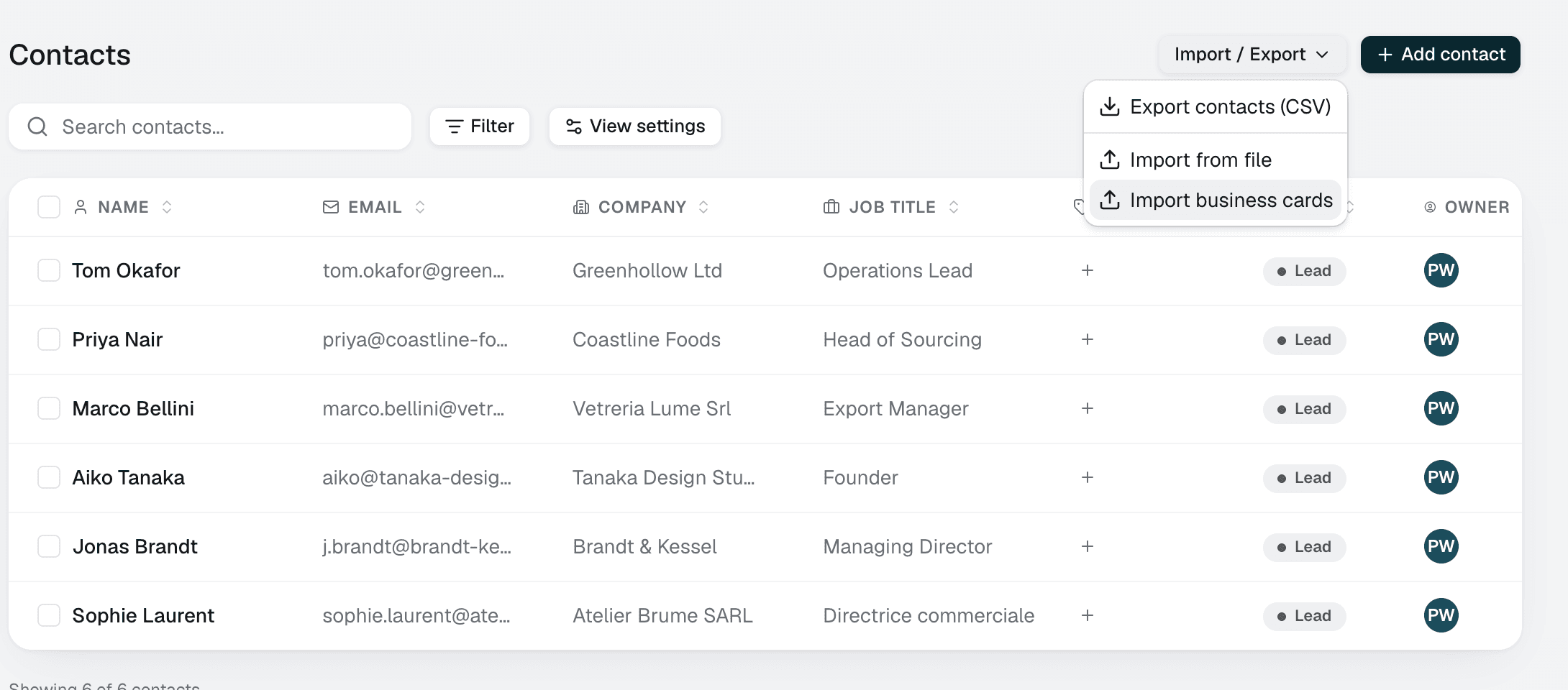
Open the card import
Open Contacts, then choose Import / Export and Import business cards.
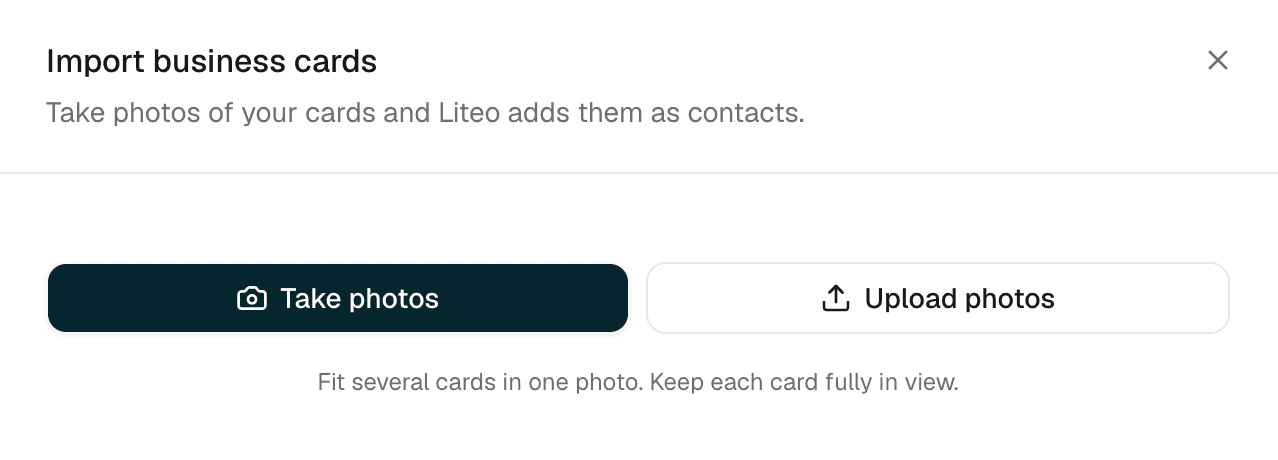
Add your photos
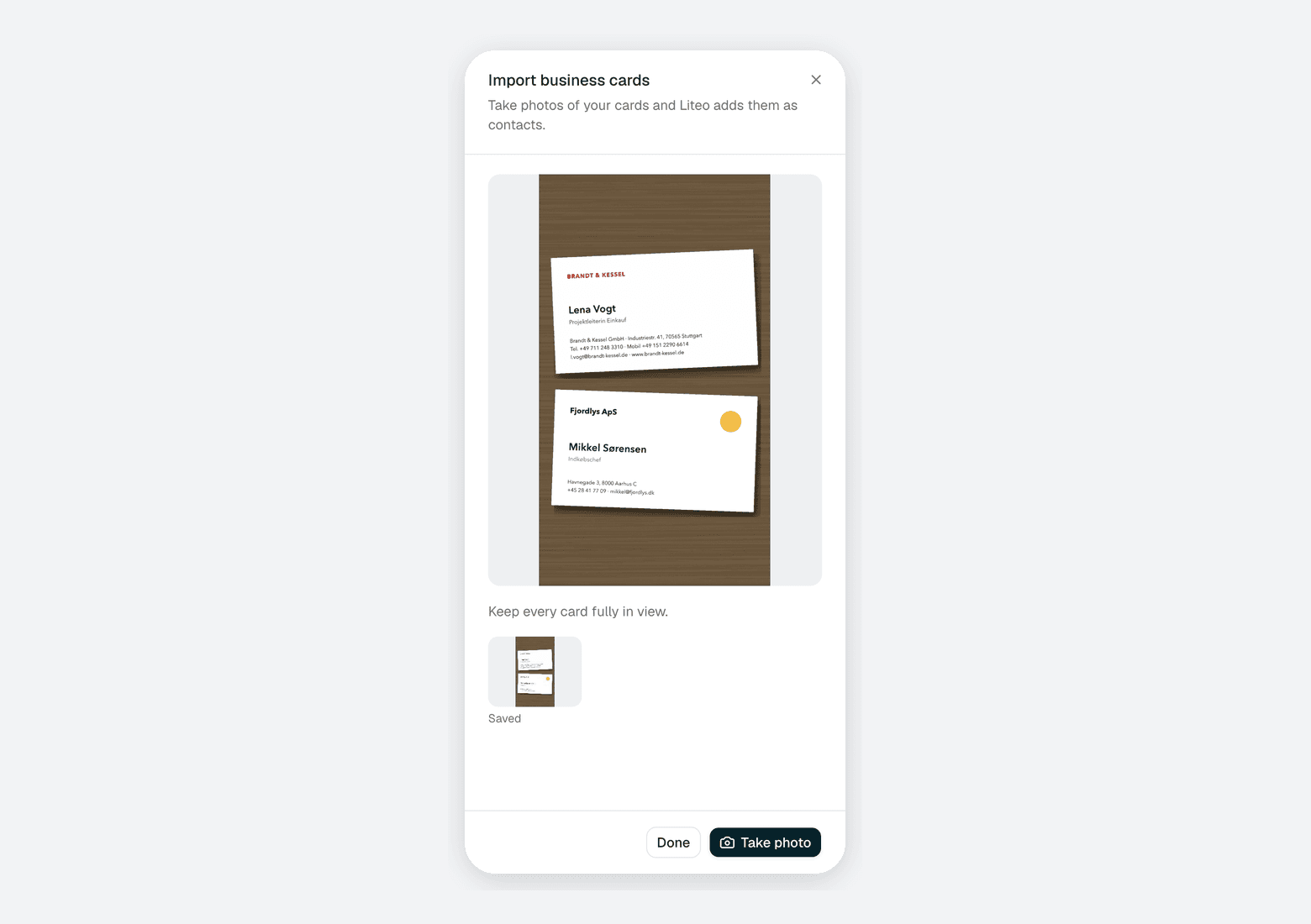
Choose Upload photos to add photos you already took, or Take photos to use your camera. One photo can hold up to 8 cards. Lay them side by side and keep every card fully in view.
On a phone, the camera stays open between shots. Take one photo after another, then tap Done.
Let Liteo read the cards
Liteo first finds the cards in each photo, then reads each card on its own. The list fills in as cards are read. You can close the window. Reading carries on, and the import is waiting when you open it again.
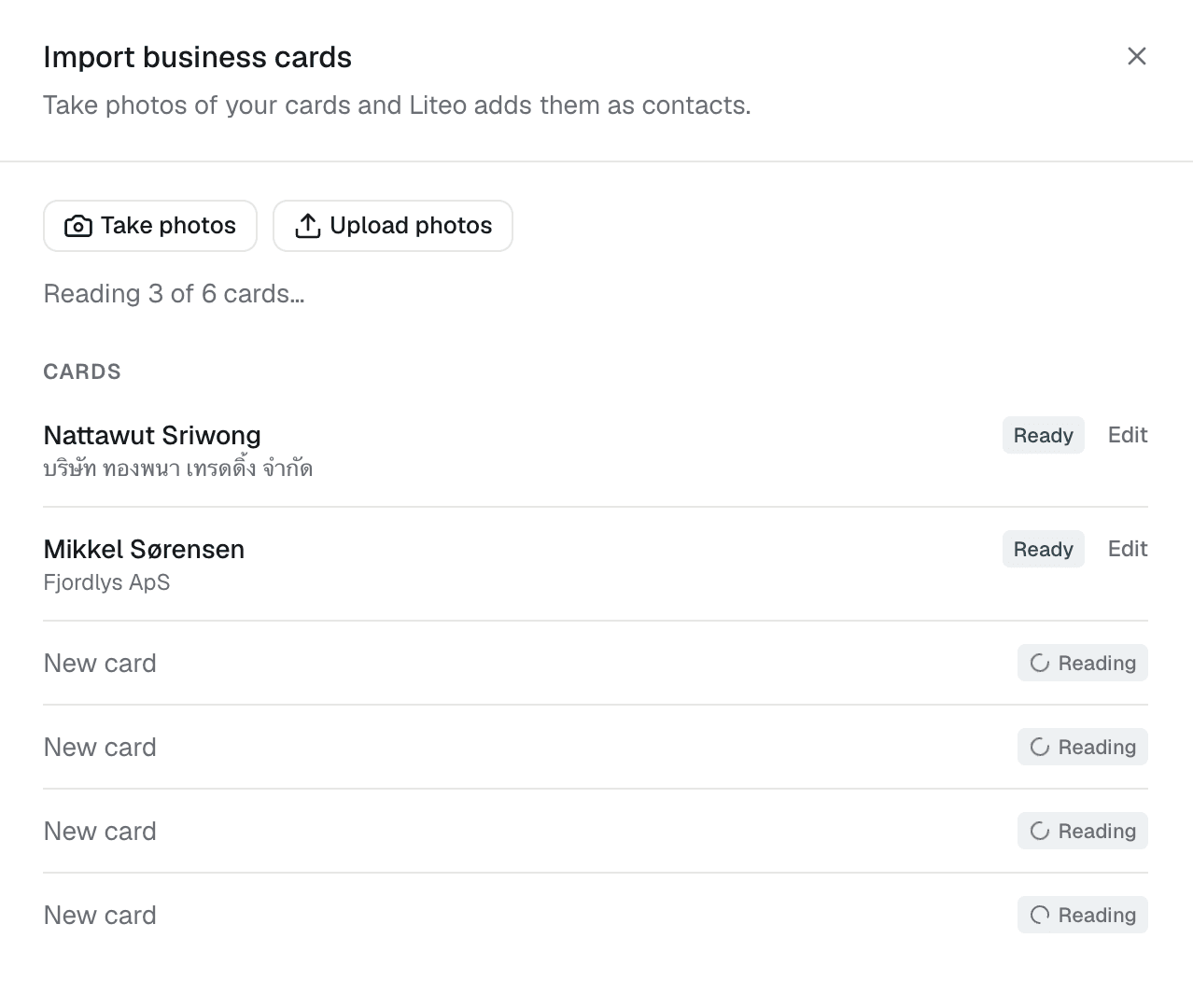
Liteo reads the name, job title, email, and phone. It also reads the company, website, company phone, and address. Anything else on the card, such as the name written in a second script, goes into a note on the contact.
Cards don't have to be in English. Thai cards and cards that mix two languages work too.
Check the cards
Every card shows what will happen to it:
- Ready imports as a new contact.
- Already in Liteo matches a contact you have. It isn't imported again.
- Check details needs you. Choose Fix, correct what's wrong, and choose Save.
You can correct any card before you import it. Choose Edit next to the card. To leave a card out, choose Skip card. The other cards from the same photo stay.
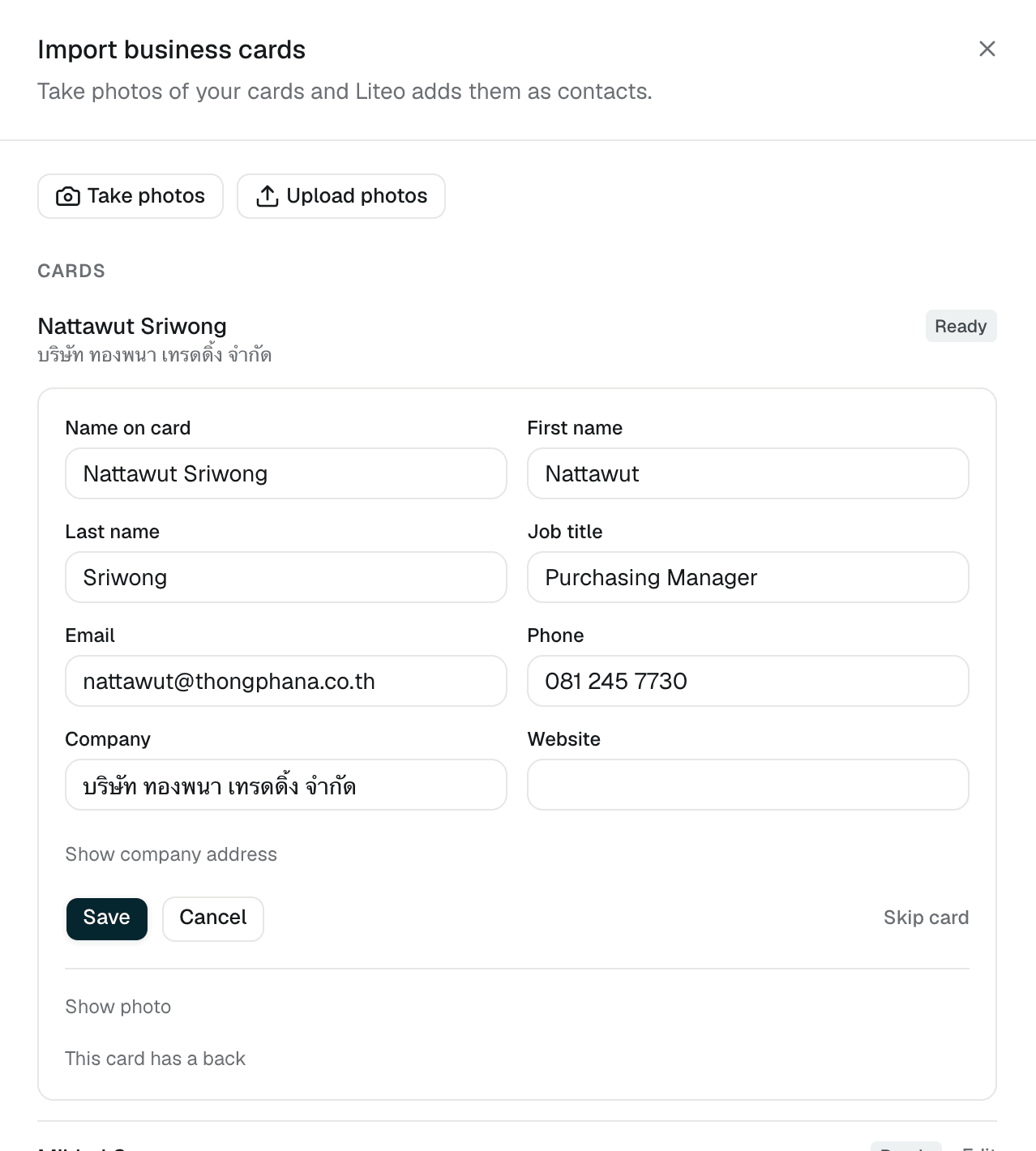
If a card has its details on both sides, photograph both. Open the front, choose This card has a back, and pick the other side.
Import the contacts
To tag everyone from one event, choose + Event tag first. Then choose Import contacts. The button shows how many cards are ready.
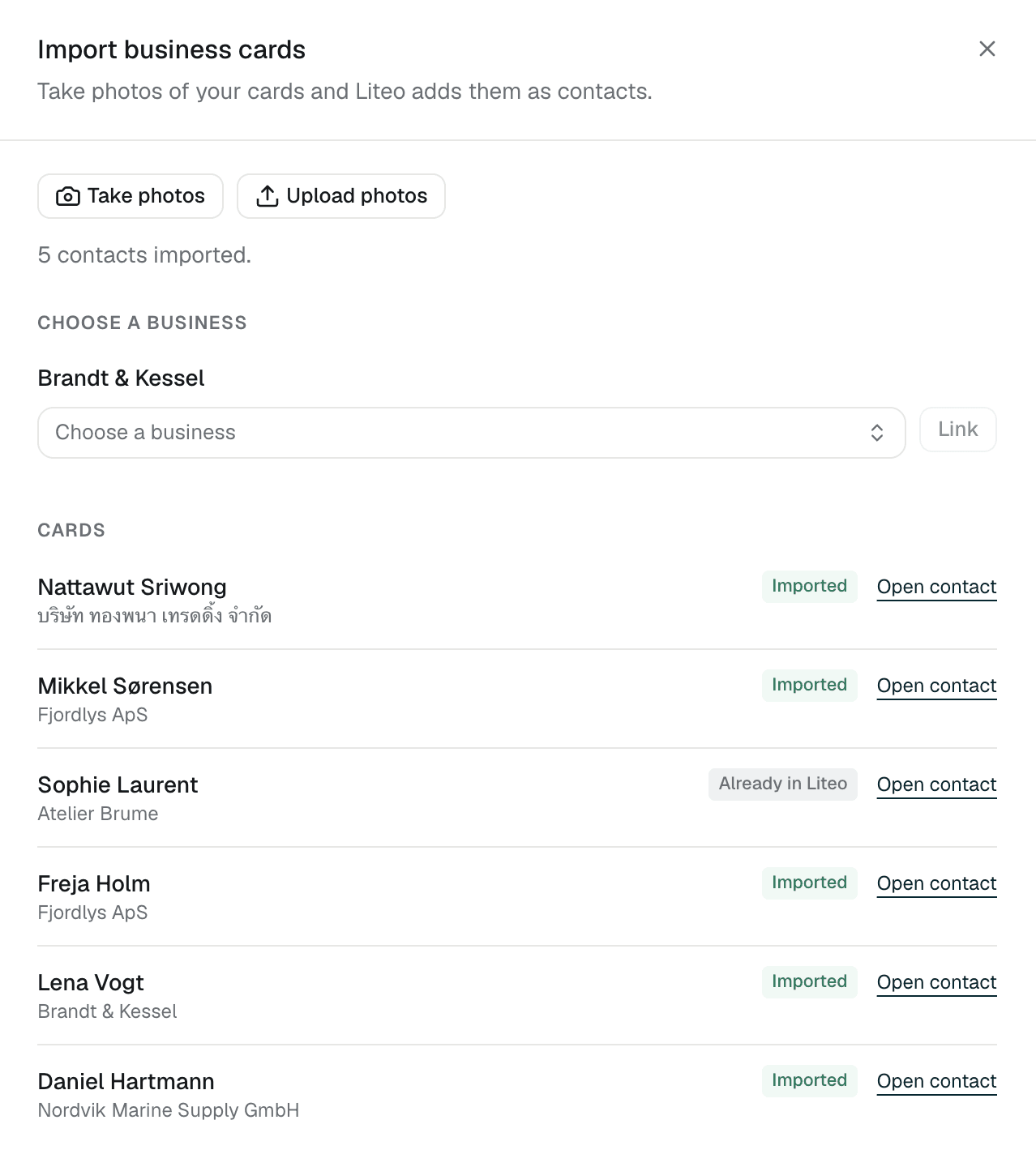
Each imported card gets an Open contact link. Choose Done when you're finished. That closes the import, and your new contacts are under Contacts.
How businesses are grouped
Cards from the same company become one business. Liteo groups them when the company name matches and the website or address matches too.
When the company is already in Liteo, the contact is linked to it. That happens when the name matches and the website, address, or company phone agrees.
When Liteo can't tell which business is meant, it still imports the contact. The company waits under Choose a business. Pick the right one and choose Link.
Liteo doesn't change the details of a business you already have.
Duplicates
A card for someone already in Liteo shows Already in Liteo. It needs the same name, plus the same email or phone. Liteo skips the card and leaves the existing contact as it is.
The same person photographed twice in one import becomes one contact.
When a card's email or phone belongs to someone with a different name, Liteo doesn't guess. The card shows Check details so you can decide.
When reading is paused
Sometimes the import says reading is paused on our side. Your photos are saved. Liteo reads them as soon as reading is back, so you don't need to upload them again.
Reading pauses when the reading service is down, or when your workspace has used its monthly reading allowance. The allowance resets on the 1st of each month.
Limits
- Up to 8 cards in one photo.
- Up to 500 photos and 500 cards in one import.
- JPEG, PNG, WebP, or HEIC photos, up to 10 MB each.
- Each workspace can read about 1,500 cards a month, and more when several cards share a photo.
- An import stays open for 7 days. Cards you haven't imported by then are removed with their photos.
- Once a photo's cards are imported, Liteo deletes the photo. A photo with a missed-card warning stays until you close the import.
Related guides
Last updated on